Do you want to bring the measurements from the SD Card into Excel? Use the free program DAMeterConverter, which can be downloaded from the Download section of www.dameter.com: read the manual.
Introduction
The ΔA Meter® is an instrument that estimates the chlorophyll content inside a fruit. Since chlorophyll content is a precise indicator of a fruit's ripening stage, the ΔA Meter® tells you how ripe the fruit is, independently of weather conditions, which instead affect other types of measurements such as the sugar index.
The ΔA index, measured with the ΔA Meter® , is useful at various stages of the fruit production-to-consumption cycle. It can in fact be used:
by the grower, to optimise tree pruning, obtaining a very uniform product and consequently reducing the number of harvests;
by the grower, at harvest time, to identify the best moment for picking and to select the samples to be distributed among the staff who pick the fruit;
by the warehouse manager, to know the ripeness of the fruit in storage and to know, at any time, what shelf life can be expected from the product;
by the retailer, to buy products with the desired ripeness;
by the retailer, to select the ripest product for sale.
The ΔA Meter® is also used in scientific research on the activation of the genes responsible for fruit ripening.
Note on the trademarks mentioned in this document:
ΔA Meter® is a registered trademark of Alma Mater Studiorum - University of Bologna & Sintéleia SrL;
ΔA Index® is a registered trademark of Alma Mater Studiorum - University of Bologna ;
Sintéleia® is a registered trademark of Sintéleia SrL ;
Windows® is a registered trademark of Microsoft Corporation;
The ΔA Index®
The ΔA Index® or DA Index®1 is an index of the amount of chlorophyll present inside a fruit and, consequently, of its ripening stage. The value of the index decreases as the fruit ripens, reaching extremely low values when ripening is complete. Each type of fruit has specific ΔA Index® values at the various stages of ripeness. These values do not depend on weather conditions or on temperature. The ΔA Index® complements the measurement of the sugar content (Brix) and of flesh firmness, providing a different and indispensable measurement for a correct harvest.
The most important characteristics of the ΔA Index®#
The ΔA Index® has a number of salient characteristics:
It does not depend on the course of the season. Weather conditions, in fact, can influence parameters such as the sugar index. In a particularly favourable year the sugar content will already be high well before ripeness while, in an unfavourable year, it will not be high even when ripening is complete. Consequently, while the sugar index can tell us whether a fruit is good, the ΔA Index® can tell us when that fruit, good or bad as it may be, has reached its optimal point of ripeness. This means that, in a favourable year, relying on sugar readings would bring the harvest forward too much, giving fruit that is sweet, but not as sweet as it could be, while in an unfavourable year the harvest would be delayed too much, at the expense of storability, without even then reaching a satisfactory sugar level. With the ΔA Index®, instead, the fruit would always be harvested at the optimal degree of ripeness, that is, when it has reached the maximum possible sugar content before storability starts to suffer.
Its variation follows the fruit throughout its life. That is, measurable variations of the ΔA Index® occur throughout the life of the fruit, including storage. While, for example, the flesh firmness of some varieties tends to remain unchanged until a few days before consumption, and the colour of some varieties tends to be final well before harvest, thus not providing an adequate indicator of ripeness, the ΔA Index® makes it possible to classify the fruit well before the harvest date, and to keep following its ripening even in the cold store until the moment of consumption.
The measurement is neither destructive nor traumatic, and can also be taken directly on the tree, with a portable and easy-to-use instrument.
The ΔA Index® can also be measured in-line, ensuring an optimal split of the product into lots for storage and lots for immediate distribution.
The ΔA Index® is not an index of the eating quality of the fruit.2 A fruit can be ripe and nevertheless be very poor because of many environmental factors.
Notes
Pronounced “DA”;2It is nevertheless evident that the ΔA Index® at the time of harvest is expressly linked to the perceivable quality of the fruit since, for the same ΔA Index® at consumption, a fruit harvested with a low ΔA Index® (ripe) will certainly be better than a fruit harvested with a high ΔA Index® (unripe), because ripening on the tree generally gives fruit of better quality than ripening in storage. ↩
Instrument overview
The ΔA Meter® is a portable instrument for measuring the ΔA index in the field and in the laboratory. It combines ease of use with the quality of the measurements, and lets you use the data immediately or store them for future use. For this purpose it is equipped with a mass storage device (SD Card) with a maximum capacity of 32 GB, enough to store a quantity of measurements far greater than any real need, and with USB and NFC interfaces that allow immediate connection to a computer or to a smartphone.
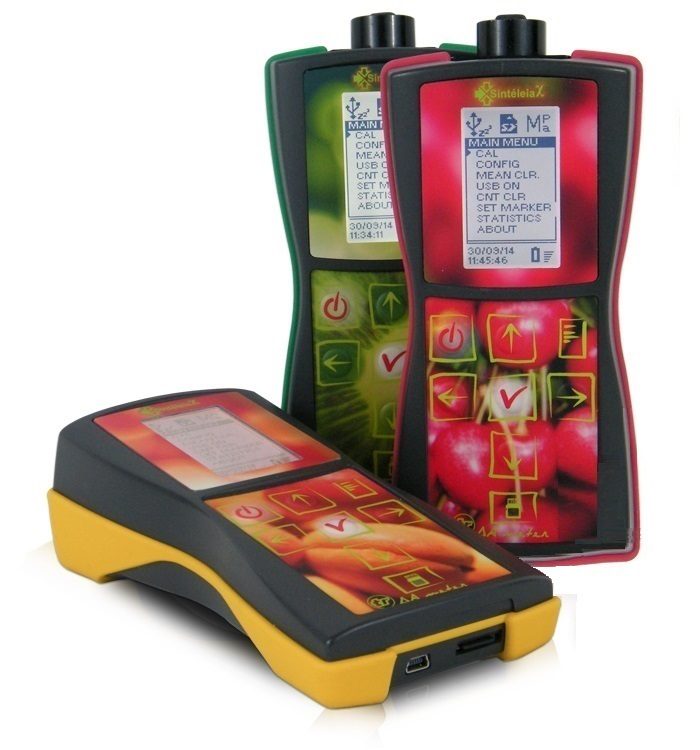
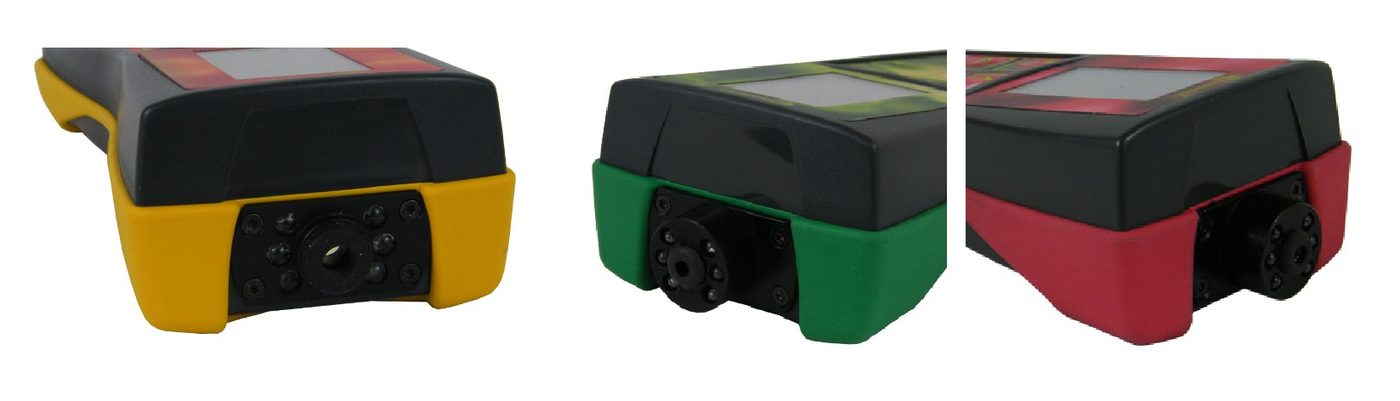
The instrument is available in several versions that differ in the size and shape of the sensor, which may be better suited to small or irregularly shaped fruit (such as cherries and kiwis) or to larger fruit (such as apples, pears, etc.), and in the number of wavelengths used for the measurement. For some types of fruit it is necessary to use wavelengths different from the one normally used on standard fruit, and for some (such as actinidia) different wavelengths are required depending on whether the variety is yellow or green. The standard instrument, with its yellow protective shell, uses a single wavelength and is fitted with a head suited to normal-size fruit.
The DA Meter instruments in their different versions and colours: yellow/orange for standard climacteric fruit instruments, green for Actinidia (Kiwi) and red for Cherries
The front of the three versions of the instrument, with the different types of sensor: with 13 mm contact ring (normal gauge) for standard climacteric fruit (yellow/orange livery), with 9 mm straight contact ring (small gauge) for Actinidia - Kiwi (green livery), 9 mm concave for Cherries (red livery)
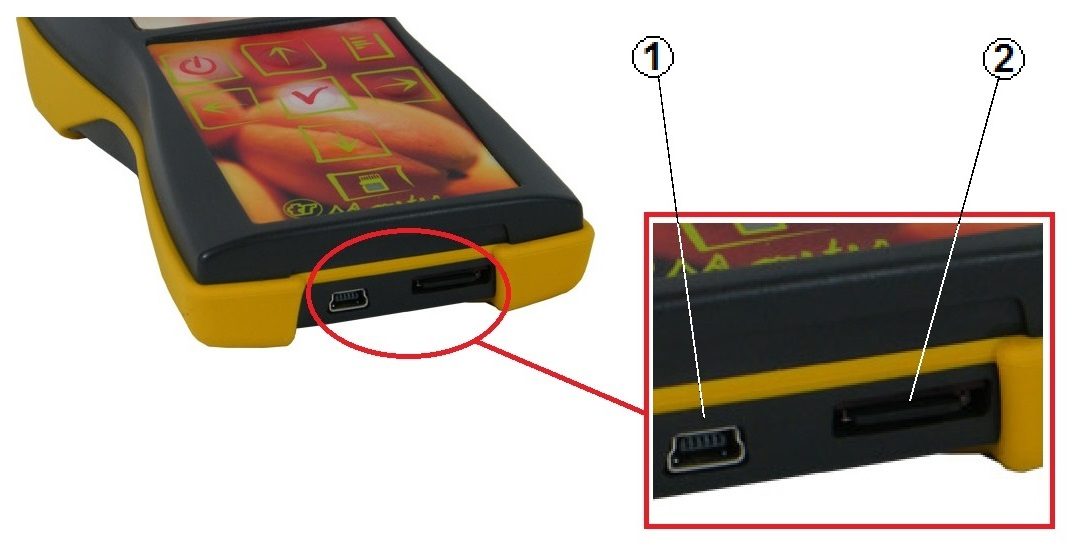
The front of the three versions of the instrument, with the different types of sensor: 13 mm contact ring (normal gauge) for standard climacteric fruit (yellow/orange livery), 9 mm straight contact ring (small gauge) for Actinidia - Kiwi (green livery), 9 mm concave for Cherries (red livery).The back of the instrument, with the USB port for connection to a PC (1) and the micro-SD Card (2)
The following table lists the versions of the instrument currently on the market:
Ordering Information
Model
Sensor type
Wavelengths
Measures the DA Index® on
FRM04-F
Standard (13 mm contact ring)
1
Apples, Pears, Apricots, Peaches, etc.
FRM04-FP
Small gauge (9 mm straight contact ring)
Irregularly shaped climacteric fruit
FRM04-AP
2
Actinidia (Kiwi)
FRM04-CP
Small gauge (9 mm concave contact ring)
Cherries
External appearance
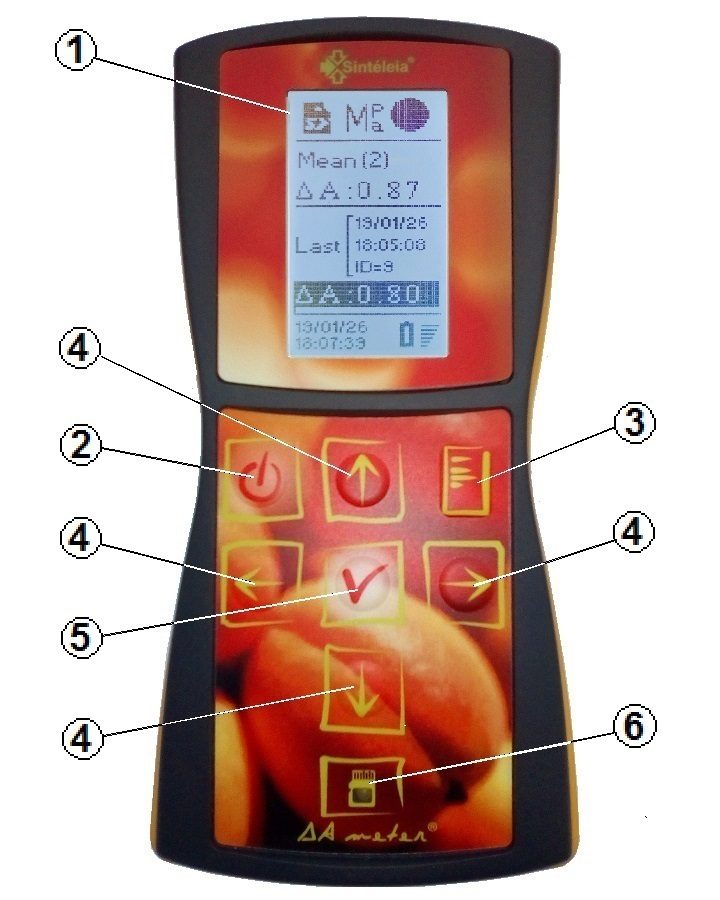
It is a handheld instrument, with a keypad and a display on the upper part, and a sensor on the front.
On the lower part is the battery compartment, closed by 2 cross-head screws, next to it the NFC communication antenna, while on the rear are the USB interface connector and the slot for the micro SD Card.
The front panel of the instrument: the numbers correspond to the list below.
LCD display;
Power on/off key;
Menu key;
Scroll keys in the four directions;
OK key;
MicroSD-Card access indicator.
Battery compartment cover
NFC antenna
Maintenance
The instrument is sold complete with a shock-proof carrying case.
Since this is a measuring instrument, it should be handled with a certain care, avoiding unnecessary stress.
For this reason, when it is not in use, it is best to keep it inside its case.
The instrument should not be soiled or wetted as far as possible and, if this happens, it should be cleaned and dried with a soft, dry cloth.
If liquids get inside the instrument, remove the batteries immediately and send it to the distributor for servicing. If corrosive liquids (for example salt water) get inside the instrument, remove the batteries immediately, wash it in fresh water making sure that the water penetrates and flows inside the instrument so as to dilute the corrosive agents as much as possible, and send it, immersed in fresh water inside a sealed container, to your trusted dealer or directly to the manufacturer for servicing.
The sensor, located on the front, must not be brought into contact with damaged fruit, to avoid soiling it. If necessary it can be gently cleaned with a little moistened cotton wool.
The rubber gasket that acts as a support and light shield for the sensor can be replaced with an original spare part. To do this, send the instrument to your local dealer or to the manufacturer for servicing.
Supplied with the instrument is the white reference (a shielded Teflon disc) which, once illuminated by the instrument, gives a measurement of ΔA=0. The white reference must be kept intact and clean. If necessary it can be washed with water and neutral soap.
The battery compartment is on the back of the instrument, is closed by a cover held by 2 cross-head screws, and holds 3 alkaline AA batteries of 1.5 V.
To replace the batteries:
Switch the instrument off;
Remove the screws and the cover;
remove and replace the batteries, paying attention to the polarity to avoid damage;
close the cover and put the screws back;
Switch the instrument on again and check that the date and time are correct. Reset them if necessary.
Use only top-quality alkaline batteries.
With alkaline batteries, battery life is normally more than satisfactory.
The use of rechargeable batteries is not recommended.
Main controls
Switching on:
To switch the instrument on, press the power key (2) for about one second, until a light beep and the appearance of some text on the display confirm that it has switched on. The key can then be released, while the instrument carries out a few operations and gets ready for operation. At the end of the power-on sequence the display shows an indication similar to the one in the following figure. Before the measurement screen, some warnings may appear one after the other (press a key to continue): Date and time seem to be corrupted (date and time not valid: set them again); calibration data too much old or absentees (calibration missing or not from today: perform CAL); Last measuring block has not been terminated (with the Label function enabled, the previous block was not closed: close it with END BLOCK or start a new one with SET MARKER); batteries are almost exhausted (batteries nearly flat, below about 4.0 V: replace them).
Switching off:
To switch the instrument off, press the power key (2) for about one second. This starts the controlled shutdown sequence, which normally takes a few seconds. If the instrument does not switch off, a prolonged press (about 30 seconds) of the power key forces it to switch off anyway. If no key is pressed for about 4 minutes, the instrument switches off automatically.
Accessing the menus:
The menu key (3) gives access to the main menu of the instrument. Once the menu is selected, you can move between its items using the up arrow and down arrow keys of key group 4, go down one level with the right arrow key, or go up one level with the left arrow key. In the main menu the left arrow key, since there is no higher-level menu, exits the menu.
Measurement:
A measurement is taken by pressing the OK key (5). Before pressing it, the sensor must be placed in contact with the fruit. The correct positioning of the sensor is described later.
Operating modes
The DA meter can be used essentially in two distinct operating modes, called “Samples” and “Distribution”.
The fundamental difference between the two modes is that in the first the display shows information on the last measurement taken, while in the second the focus is on the current lot of measurements, allowing the relevant statistical information and the split into pre-programmed DA classes to be shown graphically.
This latter operating mode greatly simplifies the work when the ripening characteristics and the uniformity of lots of fruit must be assessed.
To make it easier to manage data relating to several lots of fruit, the instrument can mark each lot with a settable label (Label), which acts as the identification code of the lot. Labels can be managed and sorted in projects (Projects) and saved in memory to be recalled and used at each measuring session relating to that lot or to the series of lots it includes.
The visible area of the display (1) is divided into several horizontal bands, of which the two at the bottom and top ends are dedicated to the standard indications of time/date and battery charge level (at the bottom), while the other (at the top) shows the other graphic indications of the status and configuration of the instrument. The latter can have the following meanings:
SD Card configured and enabled for data writing.
SD Card configured but not enabled for data writing.
SD Card not configured and/or not present.
Mean calculated on the last 2 readings (both readings are stored).
Mean calculated on n readings.
Mean calculated on a pair of readings (the mean of the two readings is stored).
Pair of readings (DA Meter F): first reading still to be taken.
Pair of readings (DA Meter F): first reading taken.
Pair of readings (DA Meter F): second reading taken.
Pair of readings (DA Meter A and C): first reading still to be taken. Display of the RED wavelength data.
Pair of readings (DA Meter A and C): first reading taken. Display of the RED wavelength data.
Pair of readings (DA Meter A and C): second reading taken. Display of the RED wavelength data.
Pair of readings (DA Meter A and C): first reading still to be taken. Display of the GREEN wavelength data.
Pair of readings (DA Meter A and C): first reading taken. Display of the GREEN wavelength data.
Pair of readings (DA Meter A and C): second reading taken. Display of the GREEN wavelength data.
Mean calculated on “n” readings (DA Meter A and C). Display of the RED wavelength data.
Mean calculated on “n” readings (DA Meter A and C). Display of the GREEN wavelength data.
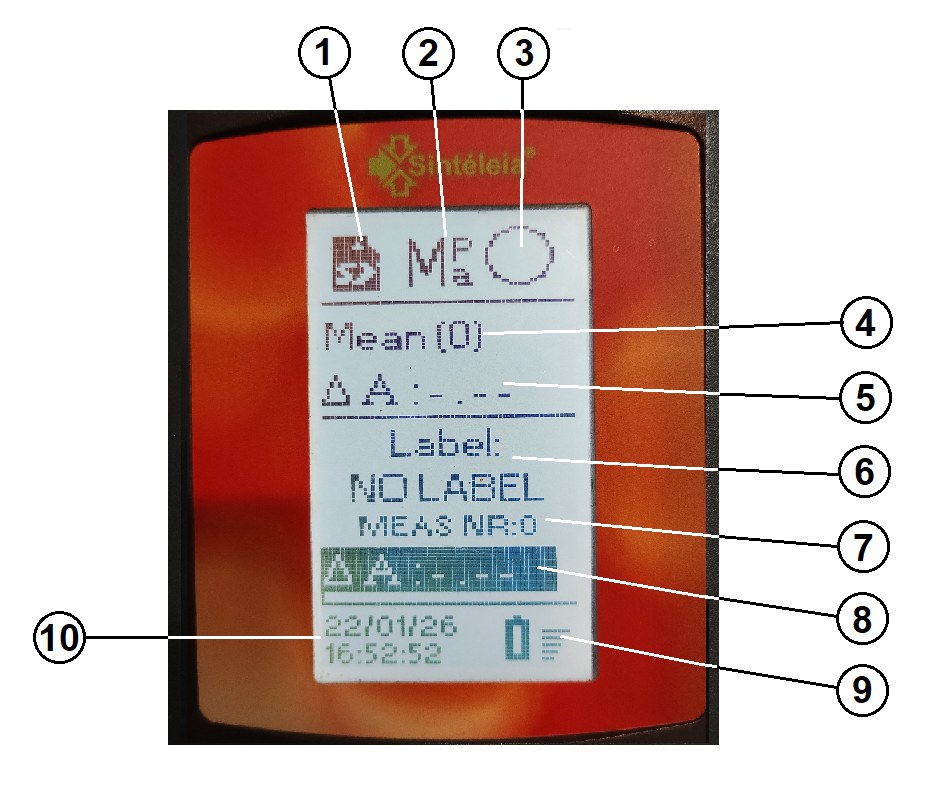
Display in “samples” mode: the numbered areas are described below.
The display is divided into 4 horizontal areas as follows.
The first, at the bottom, shows the common indications of date and time (10) and the battery status (9).
The second shows the last measured ΔA Index® value (8), together with the label (“Label”) that identifies the current measurement lot (6) and the progressive number of the measurement itself (7);
The third shows the mean value (5) of the latest measurements (4). When the Mean setting, in the configuration menu, is set to n, the mean is calculated over all the samples taken after the last mean clear operation (main menu, MEAN CLR). When, instead, it is set to 2 or P, the mean is always calculated between the last 2 samples measured, and n is therefore always 2, storing both samples (2) or their mean (P).
These modes are useful when, as is customary, 2 measurements are taken on each fruit. The previous mode, instead, is useful when a certain number of representative fruits of a batch must be sampled.
The fourth is dedicated to the graphic indications and includes 3 symbols: from the left, the first (1) shows the status of the SD Card and whether writing to disk is enabled, the second (2) shows the type of mean currently selected (2, n or pair of samples), the third shows the sequence of the samples taken for pair sampling and, for the Actinidia (kiwi) and Cherry versions, the wavelength whose value is shown on the display.
“Samples” mode with the “labels” function disabled#
If there is no need to mark and manage different lots of fruit, the instrument can also be used with the “Labels” function disabled through the CONFIG menu.
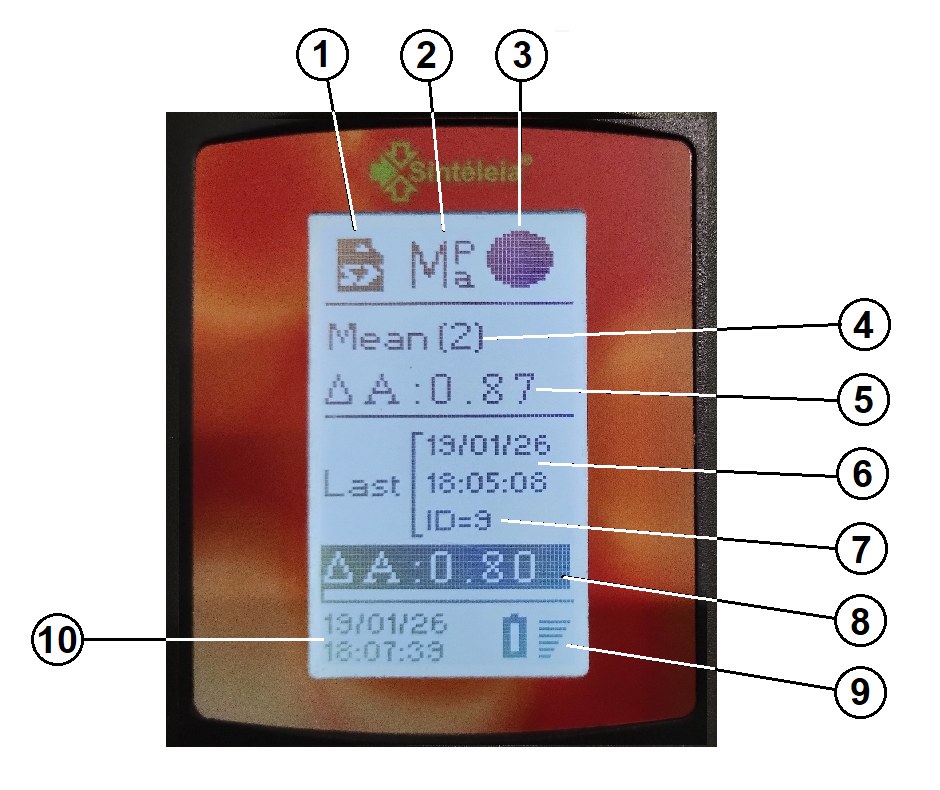
In this case the display, instead of the lot label, shows in the central part the information on the last reading taken, and looks as follows:
Display in “samples” mode with the “labels” function disabled.
The first at the bottom and the last two at the top show the same indications seen in the previous paragraph.
The second shows the last measured ΔA Index® value (8), together with the date and time at which the measurements were taken (6) and the progressive number of the measurement itself (7);
These modes are useful when, as is customary, 2 measurements are taken on each fruit. The previous mode, instead, is useful when a certain number of representative fruits of a batch must be sampled.
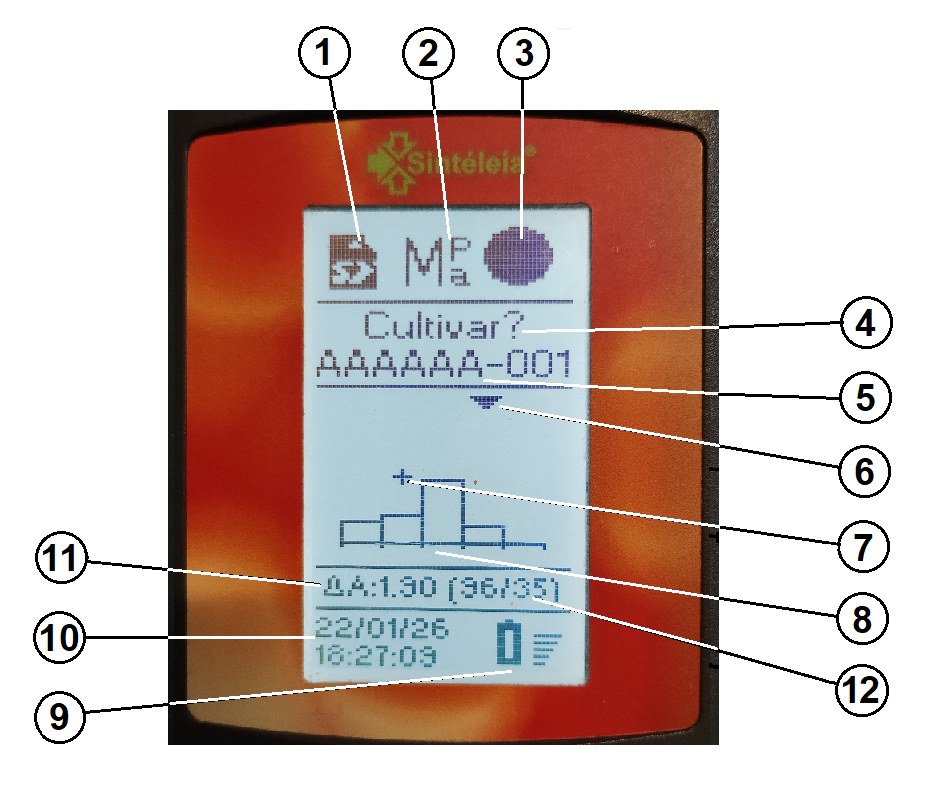
During normal operation in distribution mode, the display is divided into 5 horizontal areas, as follows, once the number of samples is equal to or greater than the minimum needed for statistically significant data:
Display in “distribution” mode.
The first refers, when the mean is set to 2 or to P2, to the mean of 2 samples and, when the mean is set to N, to the mean of the last N samples, that is, the mean of all the samples measured since the last mean reset, a reset that can be performed from the menu with the sequence Menu →MEANCLR (only in Samples mode with the “Last n” mean). The second, instead, refers to the mean of the samples of the current lot. Considering that in Distribution mode the mean will typically be set to 2 or to P, we can say that the value indicated by arrow 6 and by number 7 is the one relating to the last sampling carried out and serves only as a check, in case you doubt that the measurement was taken correctly; the value indicated by arrow 4 and by number 3 is the one relating to the last fruit measured; the value indicated by the cross 5 relates to the mean of the samples taken and is the only one which, together with the numerical values that can be read by selecting Menu→Classes→Calc in the instrument menu, has relevant statistical significance.
The displayed colour, which can also be present in samples mode, appears (together with the possibility of selecting it in the configuration menu) only on instruments that, like the kiwi meter, can work on different wavelengths.
Notes
See the paragraph “Mean accumulation type and mean pairs”, concerning the different ways of calculating the mean. ↩
Menu
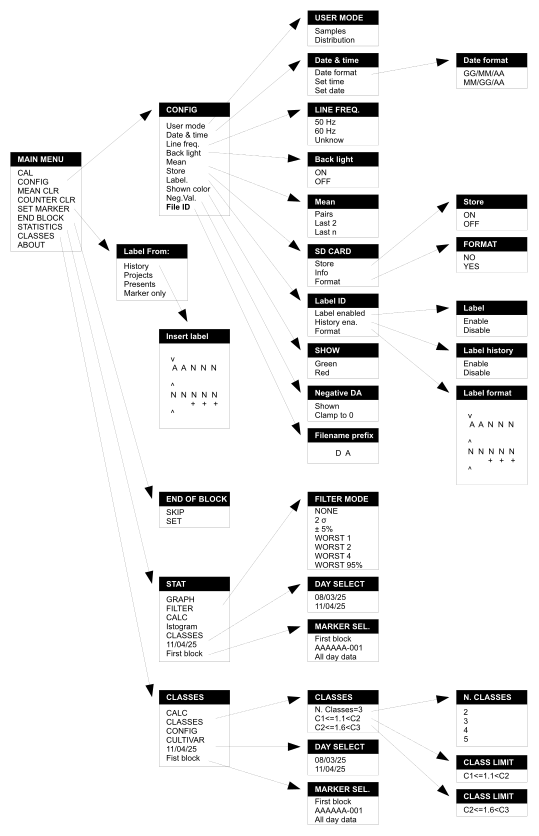
Tree structure of the menus. Click the image to enlarge it.
The menus are organised in a tree structure, as shown in the figure on the previous page. Bear in mind that not all menu items are always displayed, only those available according to the model of instrument (one or more measurement wavelengths: Standard fruit or Actinidia/Cherry) and to the current setup. For example, the Classes item of the CONFIG menu is present only if user mode is distribution, and the Shown color item only on instruments with more than one wavelength (Actinidia/Cherry). The SET MARKER, END BLOCK, STATISTICS and CLASSES items are available only if the SD Card is present and working.
In the main menu (Main Menu):
the CAL item starts the zero calibration procedure, using the white reference.
the CONFIG item gives access to the configuration menu of the instrument;
the MEAN CLR item resets the accumulation of the mean value of the ΔA index (only in Samples mode with the “Last n” mean).
The COUNTER CLR item resets the sample counter (only in Samples mode). This counter is useful when (e.g. for laboratory measurements) a measurement must be associated with a specific fruit.
The SET MARKER item inserts a special record, called a marker, in the data history. This record can be used, for example, to indicate the start or the end of a lot of measured fruit. Markers are identified by a progressive number that is displayed when the marker is inserted. Warning: The marker is inserted only if log storage is active. Otherwise the marker value will not be incremented. It is also possible to associate a “Label” with each marker, that is, a configurable 10-character code for managing harvest lots, see the next section, Operating settings. With the Label function enabled, after SET MARKER the instrument asks where to take the label from (Label from:): History, one of the last 6 labels used (if History is enabled), which can be edited with the arrow keys; Projects, a project from the list downloaded from the smartphone (file PRGTTI.TXT on the SD Card); Presents, a label already present on the SD Card; Marker only, just the marker, with no label. If storage is not active the message «Store not enabled or file error» appears.
The END BLOCK item closes the current block of measurements: it asks for confirmation (SKIP/SET), writes an end-of-block record in the data, resets the histogram, the counter and the mean, and puts the instrument back in the «NO LABEL!» state: to measure again a new marker must be inserted. It is available only if a block is open.
The STATISTICS item gives access to the menu of the statistical processing functions;
the CLASSES item gives access to the menu of the class-division processing functions.
the ABOUT item shows some information about the instrument. After pressing ABOUT it appears on several screens, which are scrolled by pressing any key except key 2. Because of space constraints these screens are arranged vertically.
Operating settings (“CONFIG” menu)
The instrument has several operating settings, accessible through the configuration menu. These allow its operation to be adapted to different needs.
Setting the operating mode of the instrument (“USER MODE”)#
There are two different ways of using the instrument: one in which the individual measurements taken are displayed together with the lot mean, and one in which, once a lot of at least 35 samples has been acquired (the recommended minimum for the information to be statistically significant; the display shows «N/35»), besides the value of the individual measurements the division into programmed classes is displayed in the form of a histogram. This second mode is useful for obtaining immediate feedback on the ripeness of a lot of fruit and on its uniformity.
The histogram appears on the main screen from 5 samples: with fewer samples only the class boxes and the arrow of the class of the last fruit are shown. The full-screen CLASSES → CLASSES view shows the histogram from 35 samples.
Setting the date format and the internal clock (“Date & Time”)#
The date setting screen is reached with the sequence:
Menu→Config→Date & Time→Set Date
On this screen you can move with the right arrow and left arrow keys to the field to modify and change the value of the field with the up arrow and down arrow keys. Press the confirm key to transfer the values set to the clock.
Similarly, the time setting screen is reached with the sequence:
Menu→Config→Date & Time→Set Time
In this case too the setting is made with the arrow keys.
The date can be displayed in the day/month/year or month/day/year format depending on the settings; the sequence in this case is:
When the instrument is used in environments lit by electric light, especially if the lamps are fluorescent, the ripple of the background light, imperceptible to the eye but not to the sensor used, can affect the accuracy of the measurement. For this reason this ripple is filtered electronically in order to minimise the effect. Filtering is optimal when the correct frequency (normally 50 or 60 Hz) is set on the instrument.
The line frequency setting screen is reached with the sequence:
Menu→Config→Line Freq
At this point you can choose between 50 Hz, 60 Hz and Unknow.
The instrument display shows the mean value of the last 2 measurements taken or of the last n measurements taken, depending on the Mean setting, accessible with the sequence:
Menu→Config→Mean
In the first case (“Pairs”) the mean displayed is always that of the last two measurements taken and is useful when following a measurement protocol that always takes 2 samples for each fruit, proceeding by pairs of readings. The data stored for each sample will be a single one, corresponding to the mean calculated after the measurement.
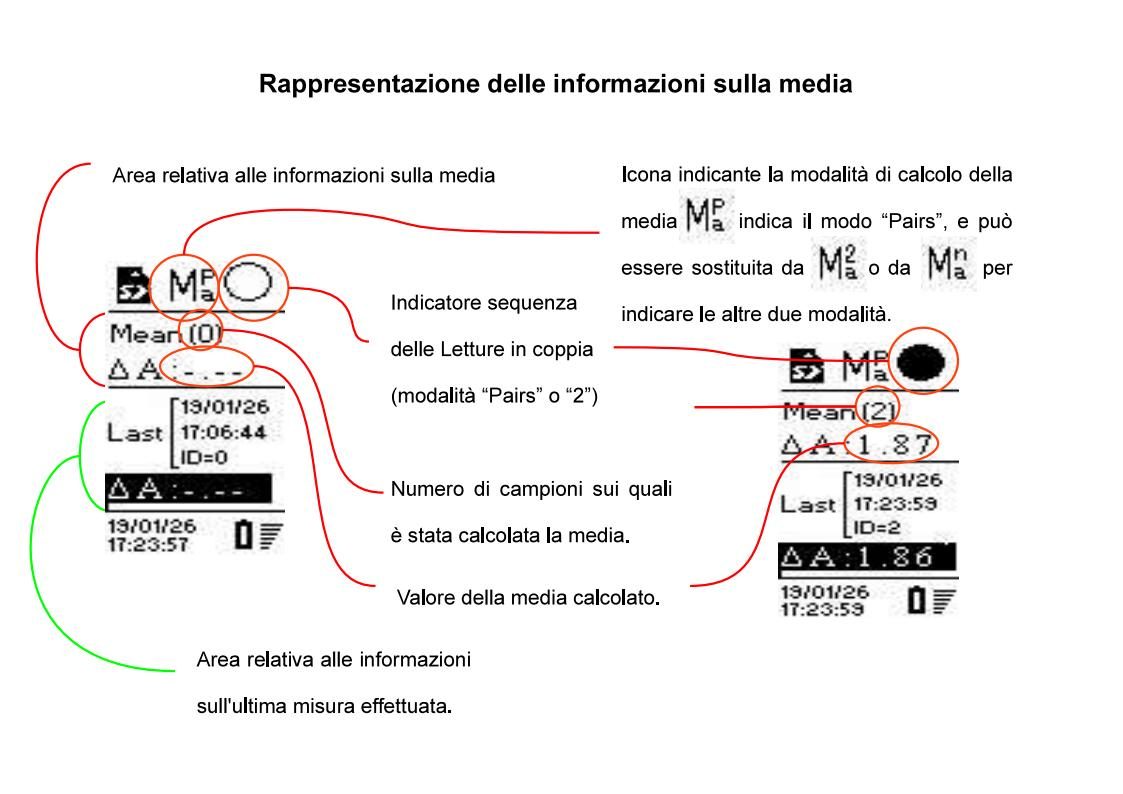
The sequence of the pair of readings is shown on the display at the top right with a circle symbol that is updated graphically from “empty” to “half full” and finally to “full” at each reading of the samples making up the pair on which the mean is calculated.
In the second case too (“Last 2”) the mean displayed is that of the last 2 measurements taken and is useful when following a measurement protocol that calls for 2 samples per fruit. Obviously, after the first measurement of a fruit, the mean value displayed will be meaningless, since it is the mean of the only measurement taken on the fruit and the last measurement on the previous fruit.
The data stored in this case will instead be one record for each single reading.
In the third case (“Last n”), useful when for example an entire batch must be analysed, the mean field shows the mean of all the n measurements taken since the last time the mean was cleared with the sequence:
Menu→MEAN CLR
In this case the mean value does not refer to the single fruit but to the entire batch.
The instrument has a micro SD Card, normally of 32 GB capacity, used as mass storage for saving the measurements taken.
Using the FORMAT menu, accessible with the sequence
Menu→Config→Store→Format
an SD Card can be formatted (FAT32 format without support for long file names). Confirmation is always requested before the operation which, obviously, destroys any file that may be present on the SD Card.
With the sequence:
Menu→Config→Store→Info
the free space on the SD Card is displayed;
With the sequence:
Menu→Config→Store→Store
saving of data to the SD Card can be enabled or disabled. If you do not need to keep the data for later processing, it is advisable not to enable saving, in order to increase the battery life of the instrument.
The “Label" function is a 10-character code that the user can configure to identify a specific marking operation, e.g. to identify a lot of apples arriving at the warehouse, or to identify the data measured on a particular field of a given grower.
The format of the Label code can be set from 1 to 10 characters, and each character can be configured in various ways (numeric, alphabetic, alphanumeric, blank, hyphen), and the function can be enabled with the sequence:
The Label. menu contains three items: Label enabled/disabled (enables the function), History ena./dis. (enables the choice of the label among the last 6 used at the time of SET MARKER) and Format (format of the characters).
Main Menu→Config→Label→Enable
Before using the "Label" function, the user must therefore set the desired format for the identification strings that the instrument will insert among the data to be marked.
To enter the format of the individual characters of the string, follow the sequence:
Main Menu→Config→Label→Format
Here the user can set the individual characters as follows:
N
Numeric character (normal)
N+
Numeric character (auto-increment)
A
Alphabetic character (normal)
A+
Alphabetic character (auto-increment)
M
Alphanumeric character (normal)
M+
Alphanumeric character (auto-increment)
"-"
Separator hyphen (fixed)
" "
Blank character (fixed)
Each time the user inserts a Marker with the "Label" function enabled, the instrument will insert a string (line) among the historical data and will ask for confirmation of the Marker number on the LCD display, followed by the proposed Label code to identify it, composed according to the selected pattern.
For the characters "-" and " " the instrument will propose the fixed “separator hyphen” or “blank” character.
For “normal” characters the instrument will propose a character identical to the one in the same position of the previous ID entered, but it can still be modified.
For "auto-increment" characters the instrument will propose a character identical to the one in the same position of the previous ID entered, but incremented by 1 step, and in any case always selectable.
The different character types can be set with the Up and Down keys, and the desired pattern is confirmed with the “V” (ok) key.
For example, if the user must acquire a lot of DA readings from apple field number 32, owned by the grower Mario Rossi, and wants to save in the lot identifier both a code for the grower and the field number, a Label can be set as follows:
|A|A|N|N|-|N+|N+|N+| and then each lot can be marked, for example, as follows:
The string will be inserted in the data file at the line corresponding to the Marking command, and will identify the reading samples that follow that Marker.
This item gives access to the CLASSES menu in which both the number of classes and the transition thresholds between one class and the next are displayed and can be set.
By selecting the first item of the menu (N. Classes=x), where x is the number of classes currently selected, you enter a menu that lets you choose a value between 2 and 5. By selecting one of the following items of the menu (as many as the number of classes -1) you can set the transition threshold between one class and the next.
This means that, if a value greater than that of the next threshold is entered for a threshold, the latter (and possibly the following ones) will be modified accordingly and, conversely, if a value lower than the previous one is entered, the latter (and any earlier ones) will be decreased until the above rule is satisfied.
If you have an instrument that uses different wavelengths for the measurement, such as a DA-Meter Kiwi/Cherry model, you can choose which of the measurements to display.
If storage on the SD Card is enabled, the instrument records both measurements, but the consistency checks on the data and the display are carried out only on the one selected.
The indication of which wavelength (Red = “R” or Green = “G”) is shown at the top right, next to the symbol of the type of mean calculated by the instrument.
Enabling the display of negative values (Neg. Val.)#
Although it makes no sense for ΔA Index® measurements, when experimenting with particular varieties and different wavelengths it can be useful to display the negative results of the calculations.
These are normally clamped to 0 to avoid negative numbers on the display that may cause misunderstandings; it is advisable to enable this option only if you are fully aware of what you are doing.
you set the two characters (letters or digits) with which the data file names begin; the default value is AD. The up and down arrow keys change the character, the right and left ones move between the two, OK confirms. The change closes the current file and opens a new one with the new prefix.
Statistical functions (“STATISTICS” menu)
The Statistics menu, accessible through the main menu, lets you choose a block of data among those present on the SD Card of the instrument using the last two items of the menu: the second to last to choose the day on which the data were collected, and the last to choose the block within the day. The block can be selected by the progressive block marker if the Label management function has been disabled with the sequence
Main Menu→CONFIG→Label→Enable→Disable
or by a Label itself if the function is enabled.
The other items of the menu let you, respectively, display the collected data in graphic form (Graph), as a histogram (istogram) or as statistical indicators (calc), as described in the following chapters.
Class management (“CLASSES” menu)
The Classes menu lets you manage the collected data not as a pure histogram but represented by arbitrary classes, chosen so as to give them not so much a numerical meaning as a logical one.
The Config item gives access to the Classes menu (also accessible through the sequence “Main Menu → CONFIG → Classes”) already described in the paragraph “Setting the class boundaries”. The last two items of the menu are similar to those already described in the paragraph “Statistical functions”: the “CALC” item displays the frequencies in numerical form, while the “CLASSES” item displays them in graphic form.
The CULTIVAR item lets you choose a fruit variety from a list stored on the SD Card in the file FRUTTI.TXT: the choice automatically sets the name of the variety, the number of classes (from 2 to 5) and the thresholds between the classes. If the file is missing or contains invalid data the messages «Fruit data file not found» or «Wrong fruit data in file» appear. The thresholds range from 0.01 to 5.00 and must be ascending; the default values, with 5 classes, are 1.00 – 1.50 – 2.00 – 2.50.
Calibrating the instrument
To work correctly, the instrument must be zero-calibrated with the white reference. Calibration values are valid until the end of the day on which they were acquired: at power-on, if the calibration is not from the current day, a warning appears and measurements remain blocked until a new calibration is made. It is in any case up to the user to repeat the calibration more often in the case of strong temperature variations, which may affect the response of the sensor. The instrument is calibrated by selecting the CAL item in the main menu, placing the white reference, supplied with the instrument, in contact with the sensor (as centred as possible) and pressing the confirm key (5). During calibration, which lasts about half a second, a continuous beep is emitted. At the end OK may be displayed if the calibration was successful, or an error message. In the first case the calibration has succeeded and, after a few seconds, the instrument returns to the menu. In the second case, instead, the calibration has failed and must be repeated. The possible messages are: Saturation (too much light: repeat in the shade or with the light shield); Inconsistent data (inconsistent measurements: check the positioning of the white reference); Low values. Clean up the sensor and retry (signal too low: clean the sensor); calibration data differ too much from previous (the calibration differs greatly from the previous one: repeat it carefully; at the second attempt it is accepted).
During calibration the white reference must not be moved: calibration can fail, apart from the case of an instrument fault, because of poor contact of the white reference with the sensor or the presence of an excessive amount of ambient light. When repeating the calibration, take particular care in positioning the sensor on the white reference and, if working outdoors or in the presence of strong light sources, keep the instrument in the shade of your own body, or fit the light shield accessory supplied.
Taking a measurement
To take a measurement, place the sensor in contact with the fruit and press the “V” (OK) key (5). To obtain repeatable and meaningful results, the measurement must be taken on both faces of the fruit in a centred position, as shown in the accompanying figures. It is normal for the ΔA Index® value on the two faces of the fruit to differ significantly, which is why both measurements are taken and the mean value is used.
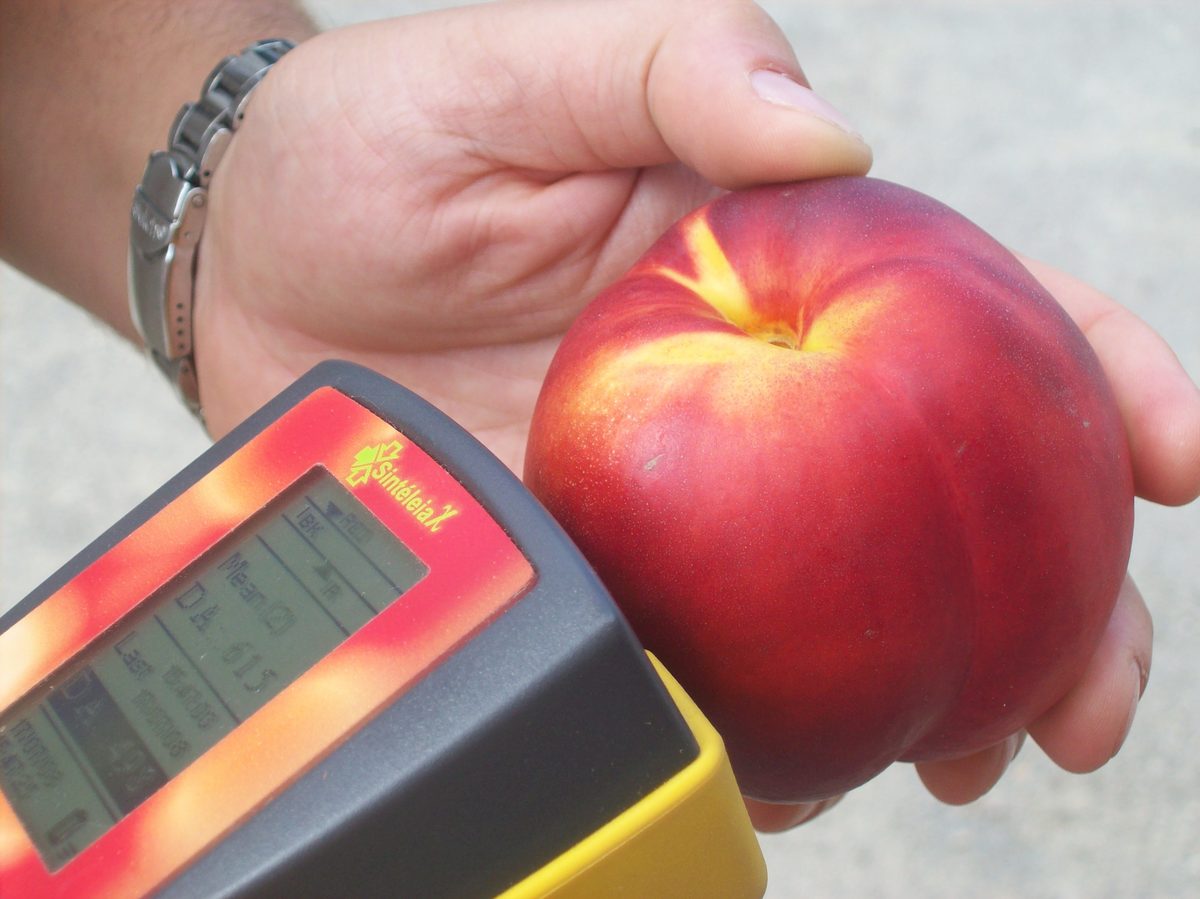
Correct position of the sensor on a fruit with two distinct faces (a peach).
In the case of fruit with two distinct faces, as in the peach in the photo, the correct position is in the middle between the two faces, as shown in the following figure.
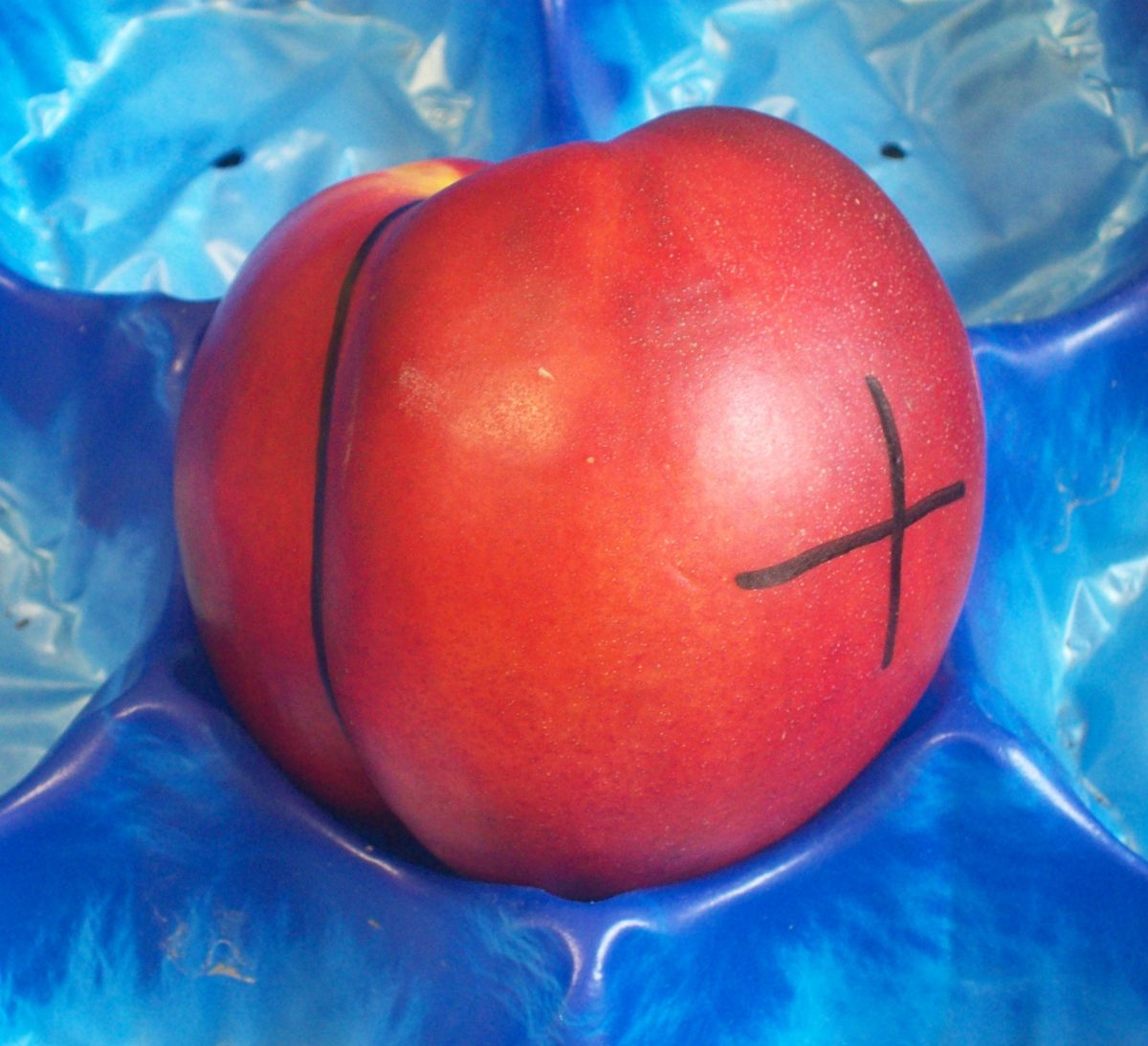
In the case of fruit of regular shape with no distinct faces, two opposite extremes must be taken.
Fruit with the measurement points marked on two opposite sides.
The correct way of choosing the measurement positions, however, varies according to the type of fruit and must be established in the harvesting protocol for that specific type of fruit together with the reference values.
When data are stored on the SD Card, they will be available as a series of measurements in a file. Correlating these measurements with the fruits that were sampled, when this is necessary, may not be so simple. For this reason each measurement is associated with a sample number, shown on the display, which is stored together with the measurement and can be associated with the fruit (for example by writing it on the fruit with a marker pen). In this way, when the data are extracted from the SD Card, you will know which fruit in particular they refer to. The sample number can be reset using the COUNTER CLR item of the main menu. Similarly, when working on lots, the measurements relating to a particular lot must be identified. To do this you can insert markers (SET MARKER item of the main menu), which appear as specific records within the SD CARD data. Marker values are incremental and can be associated with lots by using a suitably formatted “Label”.
The instrument takes the measurement by subtracting the ambient light from the light detected, but even so, especially for very translucent fruit, excessive solar radiation can affect the value of the measurement. It is therefore advisable, when working in the open field, to shield the fruit being measured by keeping it in the shade of your own body and using the appropriate accessory.
Interpreting the results
The measurements obtained with the ΔA Meter® normally range between 0 (corresponding to the maximum detectable degree of ripeness) and 5 (corresponding to an extremely unripe fruit).
Each fruit variety has different reference ΔA Index® values. For many varieties these are already available on our website. A few fundamental points must however be borne in mind:
Instrumental measurements cannot replace experience and common sense, which are indispensable for their correct interpretation. When the data obtained do not agree with what can reasonably be expected, a measurement error must always be suspected and the calibration of the instrument3 and the procedure followed must be carefully checked;
Measuring a single fruit to determine the trend of an entire production lot is absolutely wrong. Measurements must be taken on a certain number of samples. The number of samples needed to obtain the required accuracy depends on their uniformity. To put it simply, if pruning, irrigation, sun exposure and all the other parameters that affect fruit development are homogeneous, few samples may be sufficient; otherwise more measurements must be taken and a harvesting strategy decided that may even be complex (e.g. several separate harvests).
When measuring lots it is suggested to use the variance or other statistical tools to determine the reliability of the measurements taken. Once a reasonable range of measurement values has been established, it may be useful to discard the values outside the range, assuming that they may be due to external disturbances (measurement errors or abnormally grown fruit) that make them not significant. The number of these samples must be significantly smaller than those within the range. Otherwise they cannot be excluded and it will have to be concluded that the lot is not homogeneous.
Notes
It is important to bear in mind, when evaluating data relating to repeated measurements on the same samples at intervals of time, that a time trend of the measurement different from what was expected is almost always due to an incorrect calibration procedure. To obtain repeatable results always remember to check the calibration made by measuring the white reference (after moving and repositioning it). Values other than 0 indicate an incorrect calibration. ↩
Historical data
All the data acquired by the ΔA Meter® , as well as significant events such as calibrations and markers, can be stored in history files on a micro SD memory inside the instrument. These data can then be extracted and processed later.
The DAMeterConverter software, described in the dedicated chapter, converts the instrument files into Excel spreadsheets or CSV files, ready to be processed and plotted. It is available free of charge on the website www.dameter.com.
Data are stored on a micro-SD memory, supplied with the instrument. It can be inserted into or removed from the instrument only when the instrument is switched off. This operation should never be necessary, since the data on the SD Card are in any case accessible via the USB interface, through which the instrument presents itself as an ordinary USB flash drive, and it must be carried out only by qualified personnel. Storage uses the FAT32 file system and, consequently, the SD Card, if removed, can be read by most personal computers, also through a suitable adapter.
Formatting of the SD CARD must necessarily be carried out on the destination instrument because the label is customised with the serial number of the instrument itself, so as to avoid the data of several instruments being mixed up by mistake. The label format is: SN-XXXXXXXX where XXXXXXXX is the serial number of the instrument.
When the instrument is connected to a PC, all files that may be open are closed and the SD card becomes visible through the USB socket exactly as if it were an external disk.
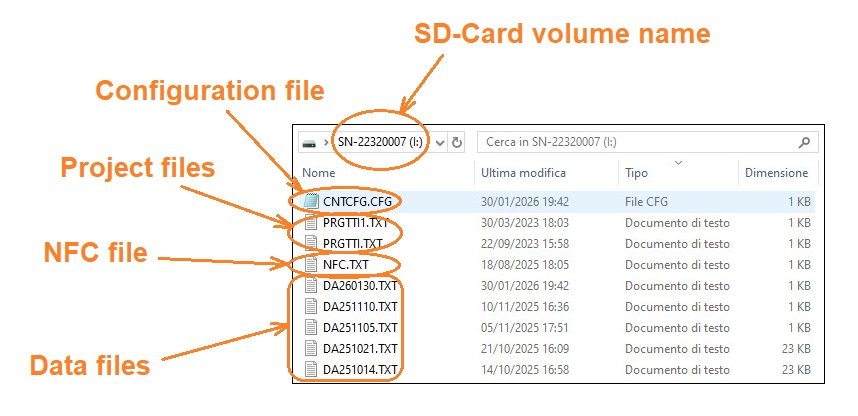
Data are stored in text files, one for each working day. The name of each file has the format: XXYYMMDD.TXT, where YY is the year, MM the month and DD the day (in this order, so that the alphabetical order of the files coincides with the chronological order). XX is a two-character prefix (letters or digits) that by default is AD and that can be changed with Menu → Config → File ID, for example to distinguish the files of different instruments. Example: the measurements of 21 October 2025 are in the file AD251021.TXT.
Files can be organised in projects and groups of projects; for each group a separate file is created that contains the index and the names of the projects.
Other files needed for the correct operation of the instrument may be present on the SD-Card, but these are not files that have any specific use for the operator.
Below is the directory structure of the SD-Card of an instrument with serial number SN-22320007:
Contents of the SD Card of an instrument with serial number SN-22320007.
Data are stored in lines, each of which refers to a specific event,
and have the following format:
LLL; LBL; DD/MM/YY; HH/MM/SS; DATA; <CR><LF>
where LLL is the length in bytes of the line, including the final <CR> and <LF> characters;
LBL is a 3-letter label indicating the type of event;
DD/MM/YY indicate the day on which the event occurred;
HH/MM/SS indicate the moment at which the event occurred;
DATA is all the data relating to the event, always in ASCII form.
Parsing data structured in this way is very simple: reading the first 8 bytes, in fact, will allow you both to establish whether the line is of interest or not and to know how many bytes must be skipped to read the next one. Even assuming that future versions of the instrument have further event types, the parsing method needs no modification.
Or when measurements are taken. At each measurement the instrument records, in order, the temperature and the raw values of the converter (the latter serve mainly for diagnostics):
037; TEM; 21/10/25; 14:11:17; 021.9 ← Ambient temperature
040; BKG; 21/10/25; 14:11:17; 00000594 ← Raw background value (ambient light)
040; IRD; 21/10/25; 14:11:17; 00021307 ← Raw value (infrared)
040; RED; 21/10/25; 14:11:17; 00000504 ← Raw value (red)
040; GRN; 21/10/25; 14:11:17; 00000167 ← Raw value (green, only Actinidia/Cherry versions)
The significant datum for the user is the ΔA value, recorded according to the type of mean. In the case M=Mn (“Last n”) or M=M2 (“Last 2”), one line for each single measurement (00001 is the progressive number of the sample):
044; DAr; 21/10/25; 14:11:19; 00001; .6000 ← Sample number and ΔA value (red)
044; DAg; 21/10/25; 14:11:19; 00001; .2360 ← Sample number and ΔA value (green)
In the case M=Mp (“Pairs”), one line for each pair of measurements, with the mean of the pair:
044; M2r; 21/10/25; 14:11:19; 00001; .8198 ← Pair number and mean (red)
044; M2g; 21/10/25; 14:11:19; 00001; .9189 ← Pair number and mean (green)
Other fields for which no description has been given may vary depending on the model and be of no use to those taking measurements, but they may be provided and used for diagnostics.
If the calibration is not successful, a UCL record (invalid calibration) is written instead of the CAL record. When a block is closed with END BLOCK, an EOM record is written (030; EOM; date; time). Markers are numbered from 0 to 9999 and, after 9999, the numbering starts again from 0. The date of the records is always in the DD/MM/YY format, whatever the format chosen for the display.
Statistical calculation functions
The data measured by the ΔA Meter® are accurate and repeatable, but they relate to measurements taken on a subject, fruit, that shows great variability. For this reason, when working on production lots, it is necessary to use statistical methods to interpret the results obtained as well as possible.
The more complex statistical processing can be performed on an external computer, but the ΔA Meter® nevertheless allows basic processing to be carried out directly on the instrument, so that the data measured can be evaluated immediately at the harvesting point. The data processed are, obviously, those stored on the SD Card of the instrument.
The statistical functions can be accessed through the “Statistics” item of the main menu. From the measurement screen you can also go directly to the processing functions, without going through the menu, with the arrow keys: ← histogram of the distribution with box-and-whisker plot; ↑ division into classes in graphic form; → statistical calculations (CALC); ↓ in Distribution mode only, selection of the fruit variety (Cultivar) from the file FRUTTI.TXT on the SD Card.
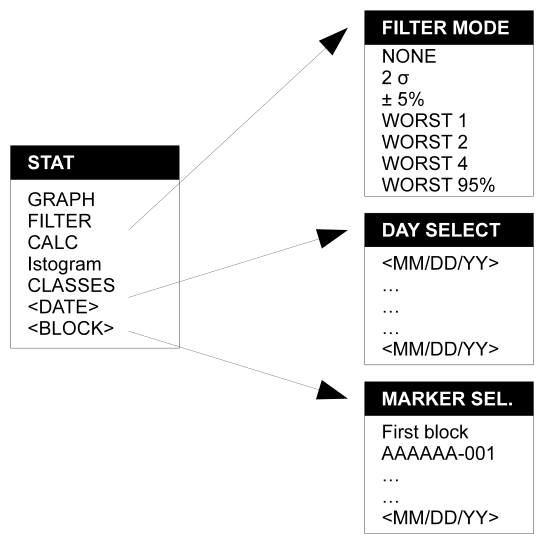
The statistical calculation menu, structured as in the following figure, contains several items, whose details will be explained later, which essentially allow you to select the data to be processed and to display the statistical information in text and graphic form.
With the last two items of the menu you can choose the day and the block of data.
Day selection essentially lets you choose the day on which the data were collected. By default the last day on which data were collected is proposed. With the up arrow and down arrow cursors you can scroll through the list, which offers only the days on which data were collected (and stored). Once the day has been selected you can select (if markers have been entered) the block of data to be displayed. The relevant submenu is available only if at least one marker is present in the selected day.
Once the data to work on have been selected, you can first display them in graphic form with the GRAPH menu, in order to highlight the presence of any anomalous data. In this mode, besides the selected data, two lines indicating the limits of the filter selection may be displayed. The scale of the data representation is automatic and goes from the minimum ΔA Index® value present rounded down to an integer to the maximum ΔA Index® value present rounded up to an integer.
When anomalous data are present (typically due to measurements taken incorrectly or on fruit not representative of a lot), you can use the FILTER menu item and select an algorithm for excluding these data.
The possible algorithms are:
NONE (all data are processed);
2 σ (all data that are more than 2 times the standard deviation σ away from the mean are excluded);
±5% (the 5 lowest and the 5 highest data are excluded, that is 5 at each end);
WORST 1 (the datum farthest from the mean is excluded);
WORST 2 (the 2 data farthest from the mean are excluded);
WORST 4 (the 4 data farthest from the mean are excluded);
WORST 95% (the 5% of the data farthest from the mean are excluded).
The filter is not applied if there are fewer than 3 data. In addition, upstream of any filter, measurements taken with too high a level of ambient light (background beyond the internal limit of the instrument) are automatically excluded: for this reason the number of samples processed may be lower than the number recorded even with the NONE filter. To avoid this, measure in the shade or with the light shield.
Once the correct filter to apply to the data has been selected, they can be observed in numerical or graphic form. In the first case, CALC menu, the following values will appear on the display:
N° nnn/nnn (shows how many samples were processed, filtered samples, and how many samples were available, unfiltered samples).
Mean n.nnn (shows the arithmetic mean of the samples after the filter);
Median n.nnn (shows the median value after the filter);
ModeE n.nnn (shows the mode calculated by “erosion” of the data set);
ModeC n.nnn (shows the mode calculated by dividing the data into 10 classes). The two modes are significant only for unimodal distributions;
σ n.nnn (shows the standard deviation of the samples);
γ n.nnn (shows the Fisher kurtosis index). This value is significant only for unimodal distributions.
For qualitative evaluations the data can be displayed in graphic form using the ISTOGRAM item of the menu.
In this case the histogram of the distribution will be shown together with a box-and-whisker plot.
The box represents the central quartiles, the whiskers the position of the first and last data and the arrow below the histogram represents the mean value of the data.
In this case too the scale is selected automatically: it starts from the minimum value present (rounded down to the tenth) and its span is a multiple of 0.5. The number of classes used for the histogram is automatic and depends on the number of samples: 5 up to 30 samples, 10 up to 60, 20 up to 150, 50 up to 300, 100 beyond. The histogram requires at least 15 samples; otherwise the message «Not enough samples» appears.
Statistical data provide information on the distribution of the samples taken. This information, when correctly interpreted, makes it possible to determine whether the measurements taken are representative of a lot, whether this lot is homogeneous and, finally, what the reference value for the lot is.
To do this some basic knowledge of statistics is needed.
Premises:
Statistical calculations cannot be performed on an excessively small number of samples.
When statistical calculations are based on samples, these must be taken at random.
Mean, median and mode:
The arithmetic Mean of N samples is the sum of the values of all N samples divided by N.
The Median of a number of samples is simply, with the samples taken in ascending or descending order, the value of the central sample of the series.
The Mode of a number of samples is simply the value corresponding to the maximum frequency density, that is the value that appears most often. Multimodal distributions, that is distributions that have several relative maxima of frequency density, or unimodal ones, may exist. In a homogeneous sample of measurements we do not, of course, expect a multimodal distribution. The values of the mean, median and mode, for symmetric distributions, are equal or very close. A considerable difference between these values indicates an asymmetric distribution.
Standard deviation:
The standard deviation σ (sigma) is the root mean square of the differences between the mean value of a series of data and the value of the individual data. Essentially the standard deviation is a number that indicates how close the data values are to the mean value. Since the quantity averaged is the square of the differences between the values of the samples and their mean, the samples farthest from the mean carry a greater weight than the closer ones in the calculation of σ. The standard deviation, besides providing information on the distribution of the data, is useful for determining an intervention threshold for the exclusion of anomalous data, a threshold that is normally set at 2 times σ.
Kurtosis index:
The kurtosis index γ(gamma) is an indicator of the shape of the distribution curve of the data, and is a measure of the “thickness” of the tails, that is of the degree of flattening. The instrument, in particular, calculates the “Fisher” kurtosis index. The value of the kurtosis index corresponding to a “normal” distribution is 0. A value lower than 0 indicates a platykurtic distribution while a value greater than 0 indicates a leptokurtic distribution.
Practical rules:
To characterise a lot, measure at least 50 fruits, chosen at random within the lot, following the measurement protocol established for that type of fruit. We remind you that, since the measurements are non-destructive, sampling 50 or more fruits does not involve any waste of material and that, moreover, the instrument can take these measurements in a very short time.
Evaluate the graph of the data measured and highlight any anomalous samples. A small number of anomalous samples (within 3% of the samples) may be acceptable. A significant number of anomalous samples may indicate:
An extremely non-uniform batch, made up for example of fruit from different origins;
Incorrect use of the instrument;
Malfunction of the instrument.
Exclude the anomalous data using the filters;
Look at the histogram of the sampled data. Evaluate the shape of the curve, which must be unimodal. Multimodal curves indicate a strongly non-homogeneous lot. In the case of multimodal curves the values obtained (mean, median, mode) may not be representative of the lot, and more complex evaluations are required. Moreover, in the case of multimodal curves the standard deviation and the kurtosis index make no sense and must be ignored.
Look at the calculated values. Mean, median and mode must be fairly similar. The standard deviation must be small. The kurtosis index must not be much lower than 0. High values of standard deviation and low values of kurtosis indicate a non-homogeneous lot. In this case too the values obtained (mean, median, mode) may not be representative of the lot, and more complex evaluations are required.
There are some limitations when performing statistical calculations directly on the instrument. These are typically due to the size of the RAM memory inside the instrument.
In particular:
statistical operations cannot be performed if the number of samples within a block is greater than 2000;
When the number of data files on the disk is greater than 2000, the data of the files preceding the 2000 most recent ones cannot be accessed;
When a single file includes more than 2000 markers it is impossible to select the marker.
The firmware of the ΔA Meter® implements some functions, mainly linked to the need to associate the mean of 2 measurements with a single fruit, so as to avoid a bimodal or otherwise broadened distribution in the examination of the sampled data. For this reason a third mean mode has been introduced, selectable with the sequence:
Menu→Config→Mean
In this menu you can choose the modes “Last n”, “Last 2” or “Pairs”:
The “Last n” mode shows in the dedicated portion of the display the mean of all the measurements taken since the last time the mean was reset (Menu→Mean Clr). This mode is very useful when you want to quickly obtain the mean of a certain number of samples of a lot, but are not particularly interested in further statistical processing;
The “Last 2” mode shows in the dedicated portion of the display the mean of the last 2 measurements taken. This mode is useful when you want to evaluate the data relating to a single fruit (typically the mean of 2 measurements is used, one taken on the face more exposed to the sun and the other on the less exposed one), but are not particularly interested in further statistical processing;
The “Pairs” mode lets you show and store the mean of a pair of measurements;
Representation of the information on the mean.
When the instrument operates in “last n” mode, the mean value is accumulated, measurement by measurement, since the last mean reset. The number of samples included in the mean is shown on the display; the mean value is shown only when the number of samples is greater than or equal to 2.
When operating in “last 2” mode, the mean of the last 2 samples measured is always displayed. This, obviously, when the number of samples is greater than or equal to 2. In this mode the value stored on the SD card is in any case that of the individual samples.
When operating in “pairs” mode, the mean of the last pair of samples measured is displayed. As can be seen in the state diagram in the following figure, after each power-on, after a calibration, after a mean clear, after the insertion of a marker and after a mode change, the number of samples in the mean is 0 and the display looks like the one on the left in the previous figure (State #1). When, in this situation, a measurement is taken, it is accumulated in the mean and the display shows “1” as the number of samples and -.-- as the value of the mean. The measurement is displayed normally in the measurement field (State #2). When, in this situation, a further measurement is taken, the display shows 2 as the number of samples and the value of the mean is displayed, as on the right in the previous figure (State #3).
State diagram of the “Pairs” mode.
The next measurement brings the system back to State #2.
Note that in this operating mode only the means are stored, not the individual measurements taken. The progressive ID number is incremented only in State #3.
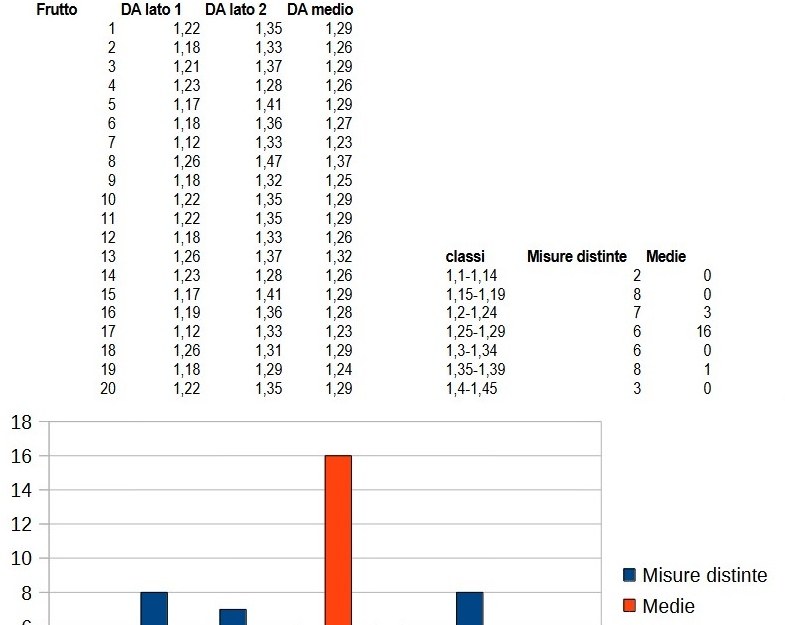
To understand this better, let us suppose we have a number of fruits that are very similar to each other, characterised by a considerable difference between the DA of the side that was more exposed to the sun and that of the opposite side.
With a population of this kind, as can be seen in the example in the following figure:
Comparison between the histogram of the single measurements (blue) and that of the means of the pairs of measurements (orange).
If we plotted the histogram of the individual measurements taken we would obtain a bimodal curve, with the two modes coinciding with the mean DA of the sides more exposed and less exposed to sunlight. From the histogram, therefore, we might wrongly conclude that our population is concentrated in two distinct classes.
The blue histogram in the figure, in fact, shows 2 distinct modes: one within the class 1.15-1.19, the other within the class 1.35-1.39.
If instead we plot the histogram of the means of the two measurements, the one taken on the side more exposed to sunlight and the one taken on the less exposed side, we would obtain a unimodal curve, which would not lead us to draw wrong conclusions about the characteristics of the sampled population. The orange histogram in the figure, in fact, shows a single mode, located in the interval 1.25-1.29.
This mode is therefore to be preferred when evaluating the statistical distribution of fruits for each of which 2 measurements are planned.
Program overview
DAMeterConverter is the free Windows program that turns the files recorded by the ΔA Meter® on the SD Card into an Excel (.xlsx) spreadsheet or a CSV file, ready to be analysed, filtered and plotted with the tools you usually use.
The program reads the data files described in the chapter Historical data (XXYYMMDD.TXT files from the portable instrument, text files from the desktop program and XML files) and produces one row for each fruit measured, with date, time, marker, lot label and ΔA Index® values.
Requirements and installation
A computer with Windows 10 or Windows 11.
The program is a single executable file (DAMeterConverter.exe): it requires no installation and no additional components. Just copy it to a folder (or to the desktop) and double-click it.
You do not need Excel to use it: the .xlsx file is created by the program itself and can be opened with Excel, LibreOffice Calc or any other spreadsheet.
The files LICENSE.txt (licence) and THIRD-PARTY-NOTICES.txt (third-party components) are supplied with the program: keep them next to the executable. The program is distributed free of charge together with the ΔA Meter® instruments.
The program is available in the Download section of the website www.dameter.com.
Preparing the instrument files
The data are on the SD Card of the ΔA Meter®. To bring them to the computer:
switch the instrument off and connect it to the computer with the USB cable: the instrument appears as an ordinary flash drive (see Connecting to a personal computer); alternatively, remove the micro SD and use a card reader;
copy to a folder on the computer the XXYYMMDD.TXT files you are interested in (one for each working day). It is better to work on a copy of the files and leave the originals on the SD Card;
disconnect the instrument.
DAMeterConverter accepts files with the .txt and .xml extensions, recognises by itself whether they come from the portable instrument or from the desktop program, and ignores diagnostic files (those whose name contains the word TASK).
The main window
Diagram of the main window (the values shown are examples). The numbers correspond to the list below.
Open DA Meter files… — chooses the files to load (more than one at a time is possible).
Clear list — removes from the window all the files and measurements loaded (asks for confirmation).
Columns to export… — chooses which columns to write to the file.
Instrument labels (PRGTTI)… — opens the editor of the list of labels to be copied to the SD Card.
Language — Italian, English or Spanish.
About… — version, licence and third-party components.
Export raw values — writes the RAW and BKG values instead of the IRD/RED/GRN ratios.
Group by marker — one row for each marker (lot) or one row for each measurement.
List — the lots (or measurements) loaded, with the selection box on the left and the Cultivar and Farm columns to be filled in.
Selection box — only the ticked rows are exported.
Select all / Deselect all.
Export to Excel (.xlsx).
Export to CSV.
At the bottom the status bar summarises the last operation (for example «Loaded 148 new measurements.»). Above the list, a line shows how many files and how many measurements are currently loaded.
Loading the files
There are two ways of loading the data:
press Open DA Meter files… and select one or more files (.txt or .xml); the program remembers the last folder used;
or drag the files, or a whole folder, onto the window. When a folder is dragged, the .txt and .xml files it directly contains are loaded (subfolders are not examined).
A file that has already been loaded is ignored if you load it a second time, so there is no risk of duplicating measurements. You can load files from different days at different times: the rows are added to the list, sorted by date.
If, during reading, a file shows anomalies (invalid date, unreadable line, unrecognised extension…), the program reports it in a Reading warnings window with the list of problems, and continues with the data it was able to interpret.
Reading and completing the list
With the Group by marker option active (default setting) the list contains one row for each marker, that is for each lot you delimited on the instrument with the SET MARKER item (see Menu and Setting the lot identification code). Each row shows:
Column
Content
(box)
If it is ticked the row will be exported. By default they are all ticked.
Date
Date of the first measurement of the lot.
Marker
Progressive number of the marker recorded by the instrument.
Label
The Label associated with the marker (e.g. MR32-001).
Measurements
Number of fruits measured in the lot.
Cultivar
Free field to be filled in: fruit variety of the lot.
Farm
Free field to be filled in: farm or field of origin.
Cultivar and Farm are simple text boxes: write whatever you want, the value will be copied onto every measurement of the lot in the exported file. While you type, the program suggests, with auto-completion, the values you have used before, so you do not have to repeat them. Cultivar and farm remain associated with the marker even if you change option or load other files.
Measurements taken before the first marker, or in any case outside any marker, are not imported in this mode; the status bar shows how many have been ignored.
On: one row per marker; measurements outside a marker are ignored; Cultivar and Farm can be edited. This is the right choice when you work by lots.
Off: all the measurements are imported, one row for each measurement; the Cultivar and Farm columns disappear (and remain empty in the exported file). It is useful for checking the data or when you did not use markers.
Normally, for each optical channel (IRD = infrared, RED = red, GRN = green) the file contains the ratio between the measured value and the calibration value on the white reference. By ticking Export raw values the program writes instead, for each channel, the measured value (RAW) and the background value (BKG), useful for custom processing. If the instrument has taken a second acquisition for the same measurement, the columns with the suffix « 2» also appear.
The Columns to export… button opens the list of all the columns that the export can produce with the data loaded. Untick the ones you do not need: the program remembers your choice. New columns that appear in the future (for example a type of measurement never encountered before) are ticked by default. With Select all and Deselect all you set everything at once.
Exporting to Excel or CSV
Tick in the list the rows to export (at least one; otherwise the program warns that there is nothing to export).
Press Export to Excel (.xlsx) or Export to CSV.
Choose the folder and the file name (proposed: MisureDAMeter.xlsx or MisureDAMeter.csv).
If the file already exists the program asks what to do:
Yes — appends the new measurements at the end of the existing file;
No — overwrites the existing file;
Cancel — aborts the export.
At the end a message confirms how many measurements have been written.
Appending is used to build a single history by adding, from time to time, the data of new days. When you append, the program uses the header already present in the file (columns and their order) and not the current column selection, so that all the rows of the history remain consistent. If the new data contain columns that do not exist in the file header, those columns are not written and a warning lists their names.
Excel: a sheet called «Misure DA Meter», bold header, dates in the format dd/mm/yyyy and times hh:mm:ss, column widths adapted to the content.
CSV: fields separated by semicolons (;), UTF-8 encoding, dates dd/mm/yyyy, times hh:mm:ss and numbers with the dot as decimal separator (up to four decimals).
The columns of the exported file
Each row of the file corresponds to one physical measurement (a fruit measured at a certain instant). If the instrument has calculated several values at the same time for that measurement (for example red and green), these appear in the same row, in adjacent columns, and not as separate rows. The column names are written in Italian, as shown below, so that histories built by appending remain compatible.
Column
Meaning
File
Name of the source file of the measurement.
Matricola
Serial number of the instrument.
Marker
Number of the marker (lot) the measurement belongs to.
Etichetta
Label associated with the marker.
Data, Ora
Date and time of the measurement.
Progressivo
Progressive number of the measurement (the ID shown by the instrument).
ΔA Index® values calculated by the instrument. The abbreviations with r and g refer to the red and green wavelengths (Actinidia/Cherry models); M2 indicates the mean value of the pair of readings (“Pairs” mode, see Mean accumulation type); DAV and DAL are the “near” and “far” values of dual-path instruments. Only the columns present in the loaded files appear, in the order just given.
IRD, RED, GRN
Ratios between the measured value and the calibration value, for the infrared, red and green channels.
IRD RAW, IRD BKG, RED RAW, …
Only with Export raw values: measured value (RAW) and background (BKG) of each channel; with the suffix « 2» those of the second acquisition.
Value1 … Value5
Additional values recorded by some instrument models (absent or zero in most files).
Cultivar, Azienda
The text you entered in the list for the marker of the measurement (Azienda = farm).
Instrument labels (PRGTTI.TXT)
The Instrument labels (PRGTTI)… button opens an editor for preparing the list of names that the instrument proposes as marker labels. The list is stored in a file called PRGTTI.TXT to be copied to the main (root) folder of the SD Card of the ΔA Meter®.
Loads an existing PRGTTI.TXT, for example copied from the SD Card. You can also drag the file onto the window. Invalid lines are discarded and reported.
Save (Ctrl+S) / Save as…
Writes the file. The name is always PRGTTI.TXT: if you choose a different name the program warns you and saves anyway with the correct one in the indicated folder; if a file with that name already exists it asks for confirmation before overwriting it.
Add / Delete
Adds a blank line at the end in which to write the name immediately, or removes the selected label. To rename an existing label, double-click the name.
Up / Down
Moves the selected label to choose the order of the list.
Sort A-Z
Sorts the list alphabetically.
Below the list the number of labels present is shown. If you close the editor with unsaved changes, the program asks whether to save them.
Language, settings and privacy
Language: the interface is available in Italian, English and Spanish. At first start the program uses the Windows language (if supported); you can change it at any time from the drop-down menu at the top right. The column names of the exported file (so that histories built by appending remain compatible) and the reading warnings remain in Italian.
Saved settings: the last folders used, excluded columns, the options of the two boxes, language and the history of cultivars and farms are stored in the file %AppData%\DAMeterConverter\config.json. Deleting that file returns the program to its initial settings.
Privacy: the program works entirely on your computer and does not send data to third parties.
About…: shows the version and lets you read the licence and the notes on third-party components.
Messages and common problems
Situation
What it means and what to do
«No new measurements read from the selected files.»
The files had already been loaded, are diagnostic files, or do not contain measurements. Check that you chose the correct XXYYMMDD.TXT files.
«N measurements outside any marker ignored.»
With Group by marker active, measurements taken without first inserting a marker are not imported. Turn the option off to import them, or remember to insert a marker with SET MARKER before each lot.
«Reading warnings» window
The file contains lines that the program could not interpret. The other lines were read anyway; check that the number of measurements is the expected one.
«Select at least one row to export.»
No box in the list is ticked.
«Error during export»
Usually the destination file is open in another program (for example Excel) or the folder is not writable. Close the file or choose another location and try again.
«Warning: these columns of the new data were not in the header of the existing file…»
You appended to a file created with a different column selection: those columns were not written. To include them, export to a new file.
Cultivar and Farm do not appear in the list
They are available only with Group by marker active.
In the sheet the values are mixed between two types of instrument
Each row shows in the Matricola column the instrument of origin: filter by serial number, or export the files of the different instruments separately.
For any other problem contact Sintéleia at info@sinteleia.it, attaching, if possible, the file that is not read correctly.
Technical specifications
Power supply: 3 alkaline AA 1.5 V batteries (AA-size);
Instrument weight: 320 g batteries included;
Case weight: 1600 g ΔA Meter® and accessories included;
Connectivity: USB interface (USB2);
Mass storage: One micro SD card slot compatible with standard SD and MMC;
File system: FAT32;
Acquisition time: 300/500 ms, depending on environmental conditions and fruit translucency;
Display: Graphic LCD with backlight;
Monitor: monitor for automatic firmware update;
OS for PC-SW App: Microsoft Windows® 10 and 11 (for the DAMeterConverter software);
Hardware requirements One USB port;
Warranty conditions
LIMITED WARRANTY AND LIMITATION OF LIABILITY
All ΔA Meter® instruments, under normal conditions of use and service, are warranted to be free from defects in materials and workmanship, unless otherwise stated. The warranty period of the main unit is two years from the date of purchase. Parts, accessories and repairs of the products are warranted for a period of 90 days, unless otherwise specified. Ni-Cd, Ni-MH and Li-Ion batteries, cables, light shields, storage media and other peripherals are considered parts or accessories. Alkaline batteries (primary batteries) are not covered by warranty as they are considered consumables. The warranty extends only to the original Purchaser or to the end customer of an authorised Sintéleia reseller and does not apply to products that, in Sintéleia's discretion, have been misused or accidentally damaged by causes related to use in poor conditions or incorrect use. Sintéleia warrants that the software has been properly recorded on non-defective media and warrants its operation for 90 days in accordance with the relevant technical specifications. Sintéleia does not warrant that the software will be free of error messages or that it will operate without interruption.
Authorised Sintéleia resellers will extend this warranty to new and never-used products only to end customers, but cannot grant on behalf of Sintéleia different or broader warranties. The warranty is valid only if the product is purchased from authorised Sintéleia resellers or if the Purchaser has paid the applicable international price. Within the limits permitted by law, Sintéleia reserves the right to invoice the Purchaser for the cost of repair or replacement when a product purchased in one country is sent to another country for repair.
Sintéleia's warranty obligation is limited, at Sintéleia's discretion, to a refund of the purchase price, free repair or replacement of a defective product that is returned to a Sintéleia service centre within the warranty period.
To obtain warranty service, contact the nearest Sintéleia reseller, who will collect the instrument for repair. Sintéleia accepts no liability for damage occurring during transport. After warranty repair, the product will be returned to the Purchaser with prepaid shipping costs (FOB destination). If Sintéleia determines that the defect was caused by misuse, alteration of the product, accident or incorrect operating or maintenance conditions, it will provide the customer with an estimate of the repair costs with a request for authorisation to proceed with the work. After repair, the product will be returned to the Purchaser with prepaid shipping costs and the Purchaser will receive the invoice for the repair and for the return shipping costs (FOB point of shipment).
THIS WARRANTY IS THE PURCHASER'S SOLE AND EXCLUSIVE REMEDY AND IS IN LIEU OF ANY OTHER WARRANTY, EXPRESS OR IMPLIED, INCLUDING, AMONG OTHERS, THE WARRANTY OF MERCHANTABILITY OR FITNESS FOR A PARTICULAR PURPOSE. SINTELEIA SHALL NOT BE LIABLE FOR ANY SPECIAL, INDIRECT, INCIDENTAL OR CONSEQUENTIAL DAMAGE OR LOSS, INCLUDING LOSS OF DATA, ARISING FROM ANY CAUSE OR THEORY.
Because some countries do not allow the limitation of the duration of an implied warranty, or the exclusion or limitation of indirect or consequential damages, the limitations and exclusions of this warranty may not be valid for all purchasers. If any of the provisions of this Warranty is held invalid by a court or other competent authority, such a ruling will not affect the validity or enforceability of the other provisions.